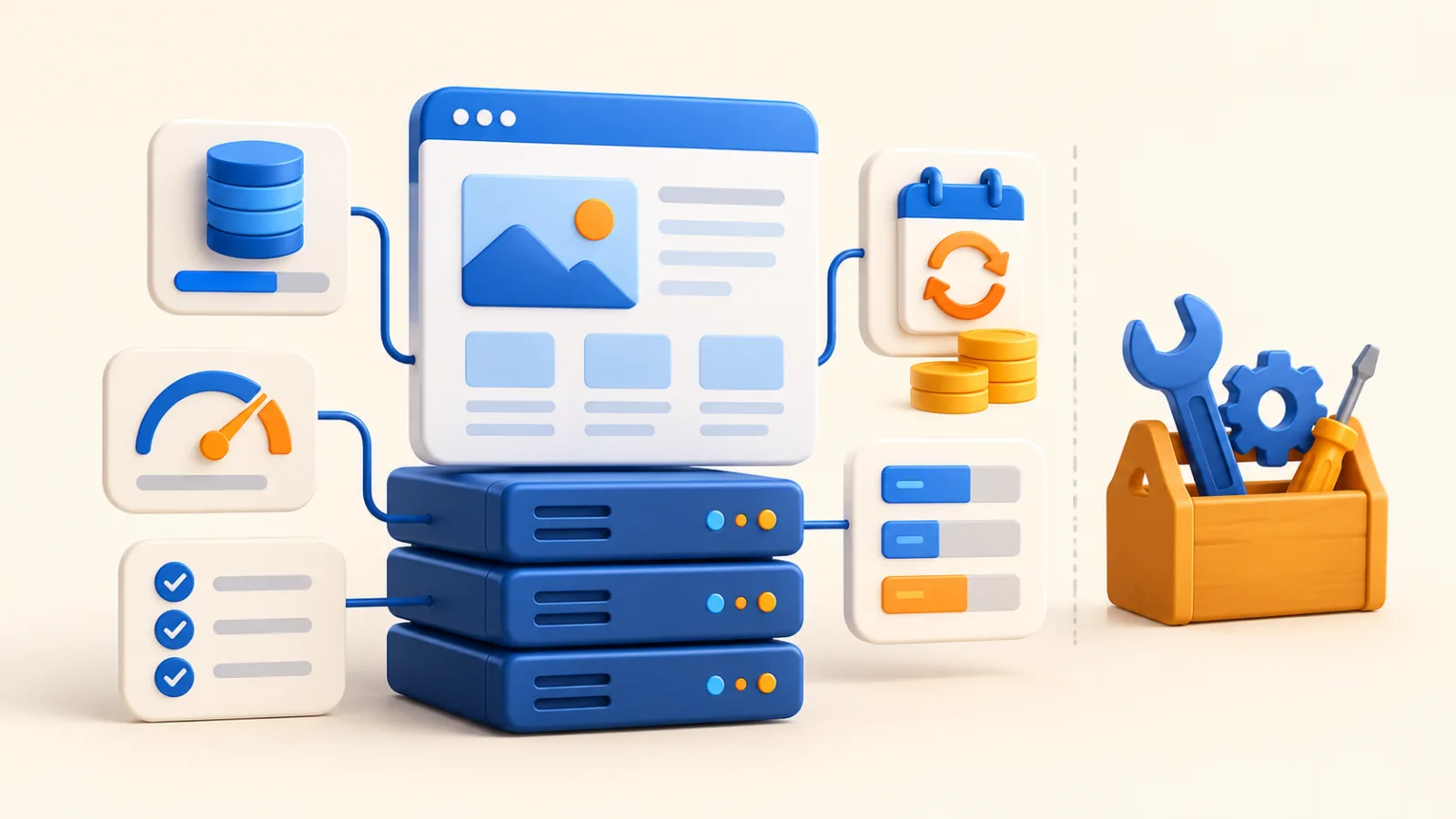
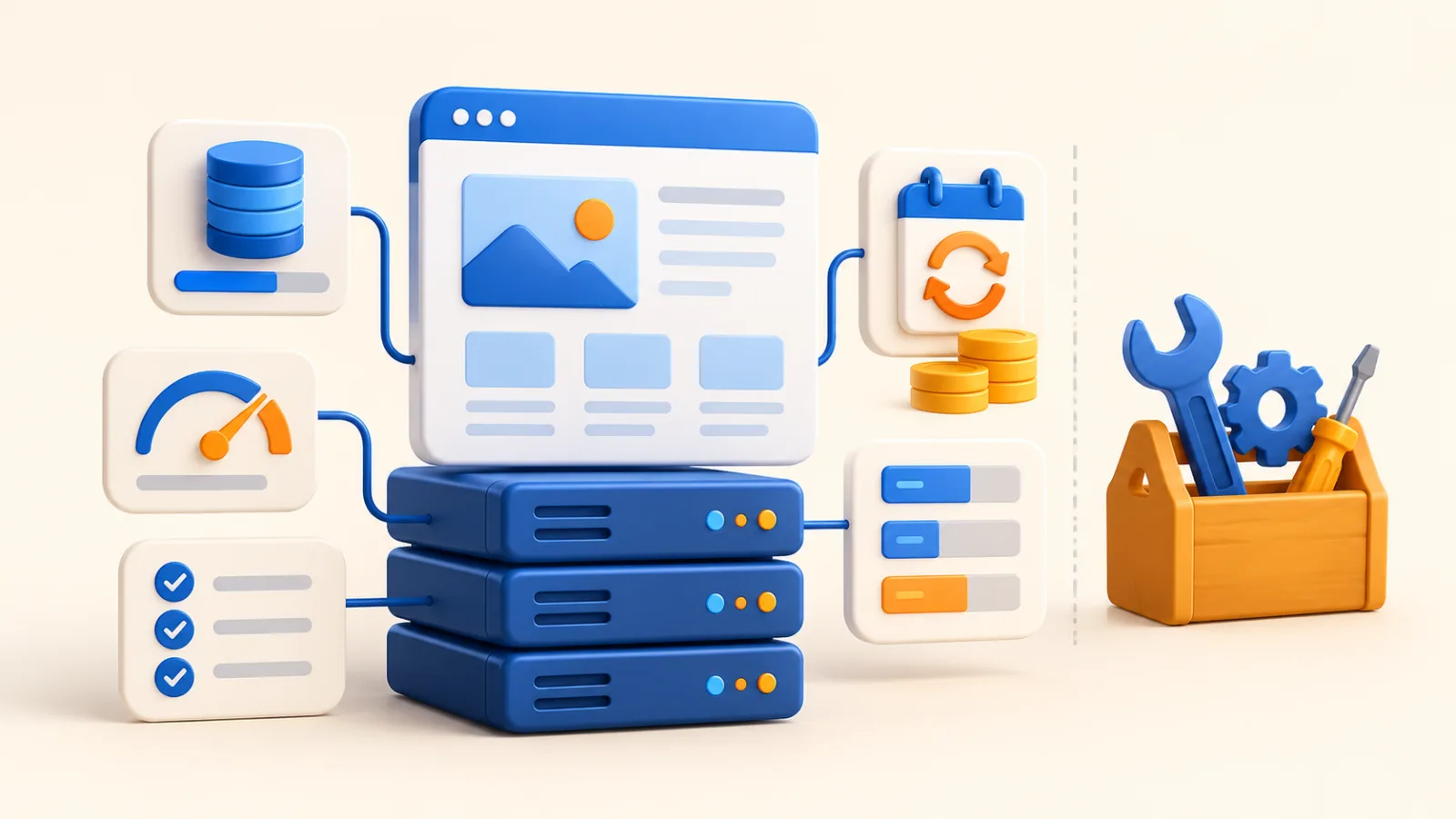
Cheap WordPress hosting can help you launch a blog, portfolio, or small business website without a large initial hosting bill. But the phrase covers several different offers. Some plans provide an account where WordPress can run. Others add maintenance tasks, staging tools, backups, or support specifically focused on the application.
To compare them fairly, separate three questions: can the plan run your website, what work is included, and what will it cost over the period you expect to use it? This guide explains the limits and responsibilities to check before committing to a budget WordPress plan.
Begin with compatibility, not a promotional label
Ask whether the service supports the current recommended WordPress environment. At the time of writing, WordPress.org recommends PHP 8.3 or later, MariaDB 10.11 or later or MySQL 8.0 or later, and HTTPS support. Check the official requirements again when ordering, because recommendations can change.
Those recommendations describe the platform environment; your theme and plugins may introduce additional requirements. Make a short list of any plugins the website depends on, especially tools for shops, bookings, memberships, or multilingual content. Ask about compatibility before buying rather than after importing the website.
If you are moving an existing site, record its current software versions and check for outdated components. A migration is a poor time to discover that the website relies on software that is no longer maintained.
Understand the difference between hosting and management
An installer can make the first WordPress setup easier, but it does not tell you who will maintain the finished website. Ask whether updates are automatic, whether they are checked afterwards, and who takes responsibility if an update causes a conflict.
Be specific about the scope. Does a service cover WordPress core only, or also themes and plugins? Will someone investigate a broken form? Are malware recovery and backup restores included? Is staging available for testing changes before they reach the live site?
There is no need to buy a managed service if you are comfortable doing the work yourself. The important step is making an informed choice. Put the maintenance tasks into your budget, whether the cost is a provider fee, a developer's time, or your own time.
Read the limits that affect WordPress in practice
Disk space is easy to compare, but WordPress also uses processing time and a database. Ask about memory, CPU, concurrent requests, database limits, and file counts. These restrictions can affect imports, backups, plugin tasks, and busy periods even when the account has unused storage.
A visitor total alone does not describe the workload. A cached article page can behave differently from a logged-in account area or a checkout page. The number of plugins is also an incomplete measure: what the plugins do matters more than the count.
| Limit or feature | Why it matters | What to ask |
|---|---|---|
| Database capacity | Stores the site's structured content and settings | Are there size or usage limits, and is staging counted separately? |
| Memory and processing | Affects application tasks and simultaneous activity | Which account limits apply and what happens when they are reached? |
| File count | Plugins, uploads, caches, and backups can create many files | Is there a separate file-count allowance? |
| Scheduled tasks | Some plugins depend on background work | Which scheduling methods and intervals are supported? |
| Email sending | Forms and account messages need a delivery path | Which limits apply and is an external mail service supported? |
Compare launch costs and renewal costs separately
Write down the amount payable at checkout, the period it covers, and the expected renewal terms. Include any services your WordPress site needs beyond the hosting account. Depending on the project, those may include a domain, premium plugins, business email, external backups, or ongoing maintenance.
If a plan shows a monthly equivalent but requires a longer commitment, record both figures. For US and UK buyers comparing currencies, keep the original billing currency on the worksheet and check conversion charges separately. Ask how applicable taxes appear on the final invoice.
Also check what happens to bundled extras after the introductory period. A free first-year service can still have a separate renewal cost. The aim is to understand the website's running cost, rather than choosing only the smallest first payment.
Make backup and restore arrangements concrete
Ask whether backups include the files and database, how often they are taken, and how long they are retained. Find out whether you can download a copy and whether restoring an older version carries a charge. A backup retained inside the same account may not help in every type of account failure.
The WordPress backup handbook explains the roles of site files and the database. Use that distinction to check your recovery plan, and keep a separate copy under your control. Before relying on a new setup, test a restore somewhere safe and verify that the relevant pages and functions work.
Match the recovery plan to how frequently information changes. A blog publishing once a week and a shop accepting orders all day face different potential losses between backups. Discuss those differences before assuming the same schedule suits both.
Check how updates and staging will work
Even a small WordPress website benefits from a repeatable update process. Keep a recoverable copy, apply the change in a suitable test environment when needed, and verify the important functions afterwards. For a shop, that includes more than loading the homepage.
Ask whether staging is included or whether a second installation uses additional account resources. If the plan permits only one database, a separate staging copy may need another arrangement. Do not expose a test site containing real customer information without appropriate access controls.
If you maintain the website yourself, keep notes about the changes made and the checks completed. This makes it easier to diagnose a problem and avoids relying on memory when several plugins update together.
Assess performance without assuming the host is the only cause
Before moving to a more expensive plan, inspect the website's workload. Large images, heavy page layouts, external scripts, and inefficient application tasks can create delays. Test the pages that matter to visitors, including mobile layouts and any forms or logged-in features.
Ask how the hosting service handles caching and what you are expected to configure. A caching feature may help some requests while other requests still reach the application. Keep private and transactional pages out of inappropriate caching rules, and test behaviour after changing the configuration.
Useful performance discussions include actual measurements and the conditions of the test. A generic promise that a plan is fast does not show how your particular website will behave.
Plan a migration as a set of checks
- Take a current copy of the website and confirm that the source account remains accessible.
- Check WordPress, theme, and plugin compatibility on the destination.
- Agree what the migration includes: files, database, email, DNS, and testing.
- Test key pages and business functions before completing the move.
- For active shops or membership sites, agree how new changes will be handled during the switch.
- Verify HTTPS, redirects, forms, login, and scheduled tasks after the move.
- Keep the previous service available until the new arrangement has been checked.
Migration support should be described clearly. A file transfer and a fully tested application migration are different pieces of work. Ask which one is being offered.
Frequently asked questions
Can WordPress run on shared hosting?
It can when the account supports the required software and has suitable resources for the website. Check the specific application and package limits. The fact that WordPress installs successfully does not prove that every planned plugin or workload will fit.
Does cheap WordPress hosting include plugin updates?
Only if the service terms say so. Ask whether the provider performs updates, checks the result, and handles conflicts. An automatic installer or a WordPress-labelled package should not be treated as evidence of a full maintenance service.
Should I move to a VPS when my WordPress site grows?
First identify the problem you need to solve. Application improvements or a different shared account may be enough for some sites. A VPS can be worth investigating when you need more control or a different resource arrangement and have a plan for server management. See our shared versus VPS explanation.
Choose a budget plan with clear responsibilities
A useful WordPress offer explains the supported environment, the resource boundaries, the maintenance scope, and the renewal terms. Put those answers beside your site's requirements before comparing the final cost.
To discuss compatibility and the work your site needs, visit our WordPress hosting information page or send Hostmivo your requirements. If you are comparing different service approaches rather than only package costs, read our WordPress hosting service comparison guide.
Sources and further reading
Explore Hostmivo’s hosting packages or continue with our researched buying guides.